

A slow WordPress website can frustrate users, hurt your search engine rankings, and reduce conversions. If your website is taking too long to load, it’s time to implement a slow WordPress website fix. In this guide, we’ll show you step-by-step solutions to optimize your site for speed, performance, and SEO in 2025.
By following these steps, even non-technical users can improve load times, enhance user experience, and increase revenue from their website.
1. Measure Your Website Speed
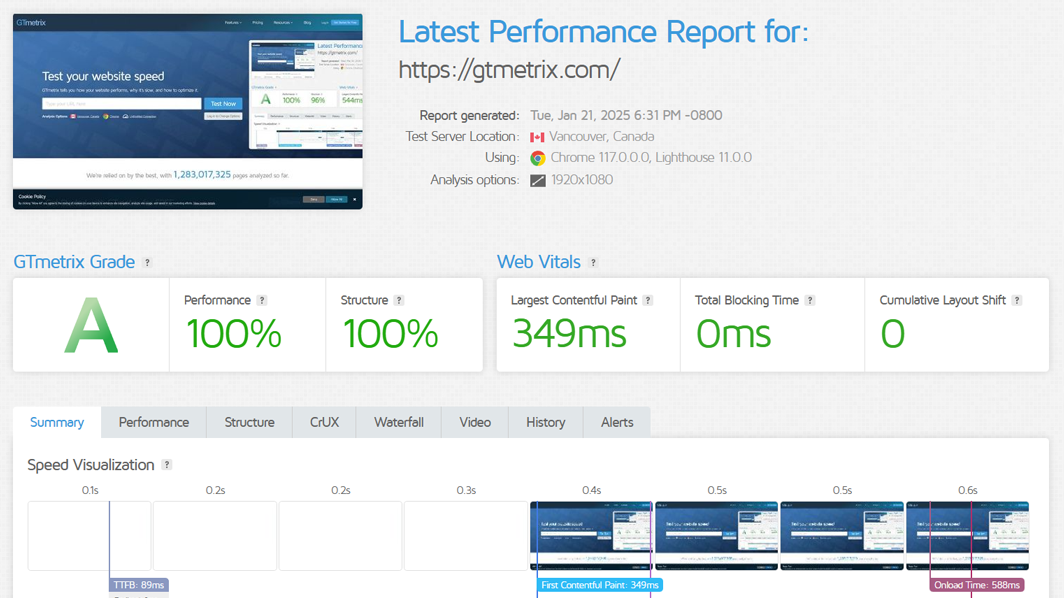
Before applying any fixes, you need to identify how slow your WordPress website is.
Steps:
-
Visit Google PageSpeed Insights or GTmetrix.
-
Enter your website URL.
-
Review the scores for both desktop and mobile.
-
Note key issues like render-blocking scripts, large images, or server delays.
Why it matters: Measuring speed first helps you track improvements after implementing fixes.
2. Optimize Images
Large, unoptimized images are a major reason for slow websites.
Steps:
-
Install a plugin like Smush or ShortPixel.
-
Compress existing images using bulk optimization.
-
Upload new images in web-friendly sizes (max 1200px width).
-
Use the alt attribute with the focus keyword:
alt="slow WordPress website fix example".
Result: Faster load times without sacrificing quality.
3. Enable Caching
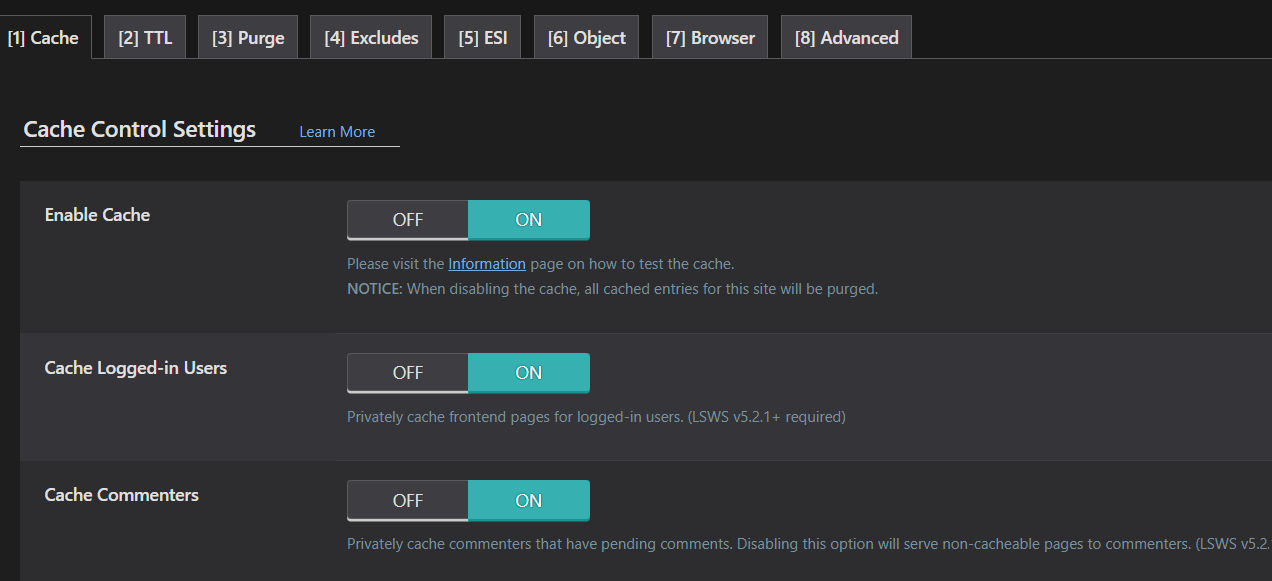
Caching reduces server load and speeds up repeated visits.
Steps:
-
Install a caching plugin like WP Rocket or lite Speed Cache.
-
Enable page caching, browser caching, and database caching.
-
Test website speed again after activation.
Result: Visitors experience near-instant page loads.
4. Minify CSS, JavaScript, and HTML
Large code files slow down page rendering.
Steps:
-
Use your caching plugin to minify CSS, JS, and HTML files.
-
Test your site visually to ensure no layout issues occur.
-
Re-run speed tests to confirm improvements.
Result: Reduced file sizes and faster rendering for all users.
5. Remove Unnecessary Plugins
Too many plugins can conflict or slow down your WordPress site.
Steps:
-
Go to Dashboard → Plugins → Installed Plugins.
-
Deactivate and delete any plugins you don’t need.
-
Keep only essential plugins optimized for performance.
Result: A cleaner, faster, and more stable WordPress website.
6. Use a Lightweight Theme
Some themes are heavy and negatively affect speed.
Steps:
-
Choose a lightweight, optimized theme like Astra, GeneratePress, or Neve.
-
Test your website for functionality and visual layout after switching.
-
Combine with caching and minification for maximum speed.
Result: Faster loading time and improved overall user experience.
7. Use a Content Delivery Network (CDN)
A CDN distributes your site globally for faster access.
Steps:
-
Use services like Cloudflare or KeyCDN.
-
Configure the CDN to serve static files (images, CSS, JS).
-
Test your website from multiple locations.
Result: Global visitors experience faster load times.
Conclusion
A slow WordPress website can hurt your business, but these steps provide a complete slow WordPress website fix. By measuring speed, optimizing images, enabling caching, minifying code, cleaning up plugins, using lightweight themes, and implementing a CDN, your site will load faster, rank higher on search engines, and provide a better user experience.
Don’t let a slow website cost you traffic or sales — implement this guide today!
Need help implementing a slow WordPress website fix? Contact WebLabsPro, and we’ll optimize your site step by step for maximum speed and performance.